
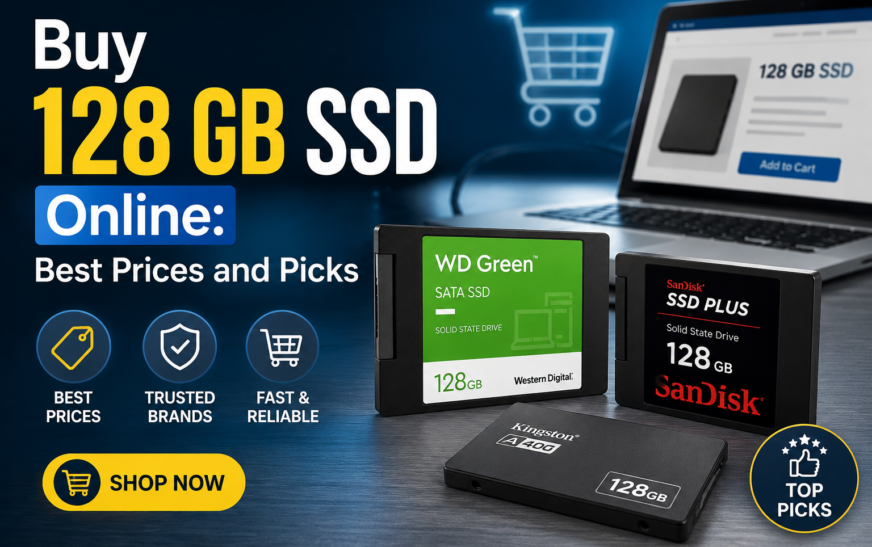
128 GB SSD: is it enough in 2026? Best picks and prices in India
A 128 GB SSD is the cheapest way to make an old laptop or office PC feel new again. It is also easy to outgrow if you buy it for the wrong job. Here is how to decide, what to buy, and which 128 GB models are in stock right now.
Quick answer
A 128 GB SSD is enough for Windows, office work, browsing, video calls and a few apps. It is not enough for serious gaming, video editing or big photo and video libraries. It shines as a boot drive or as a low-cost upgrade for an older laptop or desktop that still has a slow hard disk. Pick SATA for older machines, NVMe if your board has a modern M.2 slot, and check the form factor before you pay.
Key takeaways
- 128 GB shows up as roughly 119 GB in Windows, and about 80 to 90 GB is left after the operating system and updates.
- It is a great fit for a boot drive, a school or office PC, a thin client or a secondary laptop.
- Match the SSD to your device: 2.5-inch SATA, M.2 SATA, M.2 NVMe, 2242 or mSATA are not interchangeable.
- Moving from a hard disk to any SSD is a bigger speed jump than moving from SATA to NVMe for everyday tasks.
- Keep 10 to 20 percent of the drive free so it stays fast.
Who should buy a 128 GB SSD?
The right capacity is about what you do, not what is trendy. A 128 GB SSD makes sense in these situations:
- Reviving an old laptop or desktop. If your machine still boots from a hard disk, a 128 GB SSD is often the single most noticeable upgrade you can make. Startup, app launches and general responsiveness all improve.
- Students and office users. Documents, spreadsheets, browsers, video calls and cloud storage fit comfortably on 128 GB.
- Boot drive plus a bigger data drive. Install Windows and your core apps on the SSD, and keep files and media on a larger hard disk or second SSD.
- Point-of-sale machines, kiosks, thin clients and lab PCs. These machines run a fixed set of software and rarely need much storage.
- Linux or lightweight setups. A lean Linux install uses far less space than Windows, so 128 GB goes a long way.
- Budget builds. When every rupee counts, a 128 GB boot drive gets a build running while you save for more storage later.
Who should skip it?
Be honest about your workload. Choose a larger drive if any of these describe you:
- Gamers. Many modern games need tens of gigabytes each, and some need well over 100 GB on their own.
- Video editors and photographers. Raw photos, 4K footage and project cache files fill 128 GB quickly.
- Anyone who installs lots of software. Creative suites, development tools, virtual machines and design apps add up.
- Your only drive, for years. If this is the sole drive in a daily-use PC, consider 256 GB or 512 GB for breathing room.
Add up what you want on the drive today: Windows (about 25 to 30 GB after setup, more after updates), your apps, and your files. If the total is above roughly 80 GB, go up a size. A drive at 90 percent full is slower and gets uncomfortable fast.
How much space do you really get?
There are two reasons a 128 GB SSD never shows 128 GB of free space.
- Decimal vs binary. Drive makers count 1 GB as 1,000,000,000 bytes. Windows counts in binary units. That is why a “128 GB” drive appears as roughly 119 GB.
- The operating system. Windows 11 officially requires 64 GB of storage, but after setup, updates, the hibernation file and the page file, many people are left with around 80 to 90 GB for themselves.
| Item | Approximate space |
|---|---|
| Capacity Windows shows | About 119 GB |
| Windows, updates and system files | About 25 to 35 GB |
| Free space to leave empty (10 to 20%) | About 12 to 24 GB |
| Left for apps and files | About 60 to 80 GB |
Numbers are rough estimates. Your own figures vary with Windows version, installed apps and settings.
SATA, M.2 SATA, NVMe, mSATA: which 128 GB SSD fits your device?
Capacity is the easy part. Compatibility is where most returns happen. A 128 GB SSD can come in several shapes, and your device only accepts some of them.
| Type | Looks like | Typical use |
|---|---|---|
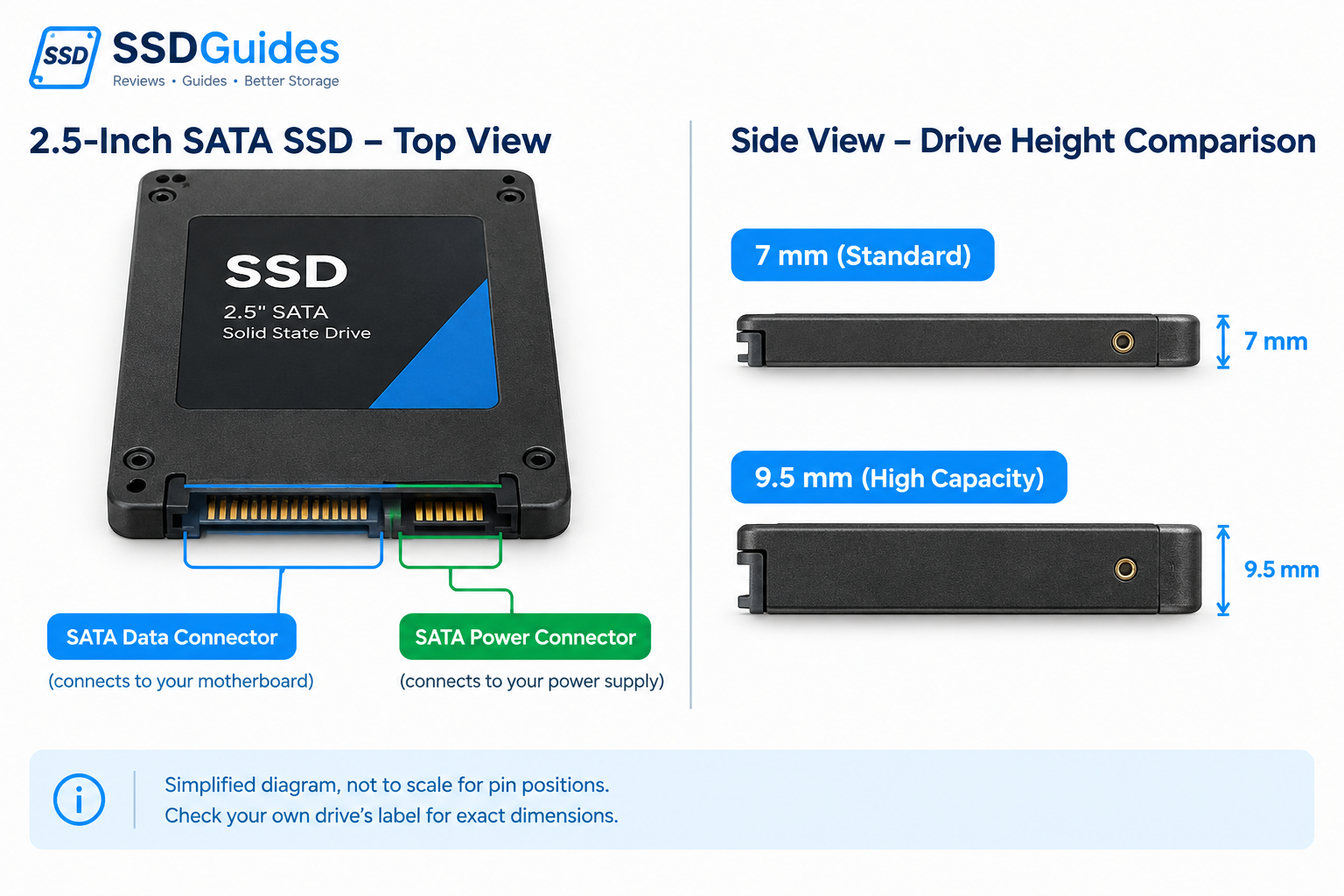
| 2.5-inch SATA | Small metal or plastic case, SATA cable and power | Older laptops and desktops that used a 2.5-inch hard disk |
| M.2 SATA (2280) | Gum-stick card, plugs into an M.2 slot | Laptops and boards with an M.2 slot that supports SATA |
| M.2 2242 (SATA or NVMe) | Short gum-stick card, 42 mm long | Compact laptops, mini PCs, thin devices |
| M.2 NVMe | Gum-stick card, plugs into an NVMe-capable M.2 slot | Modern laptops and desktops that support PCIe storage |
| mSATA | Small card, older connector | Older ultrabooks and some industrial PCs |
If you are not sure which M.2 drive your device takes, read our companion guide on M.2 NGFF keys, sizes and SATA vs NVMe before you order.
SATA vs NVMe in plain English
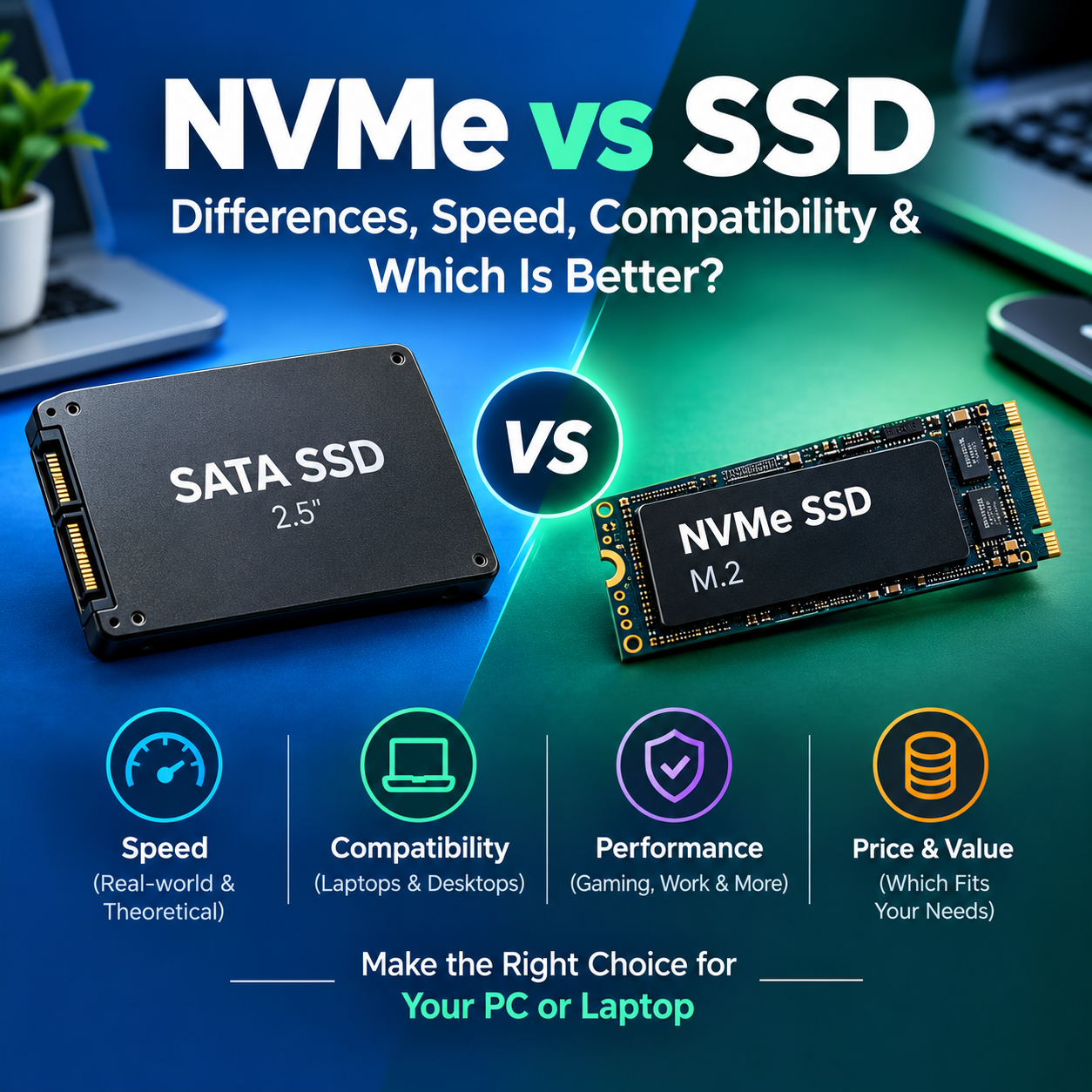
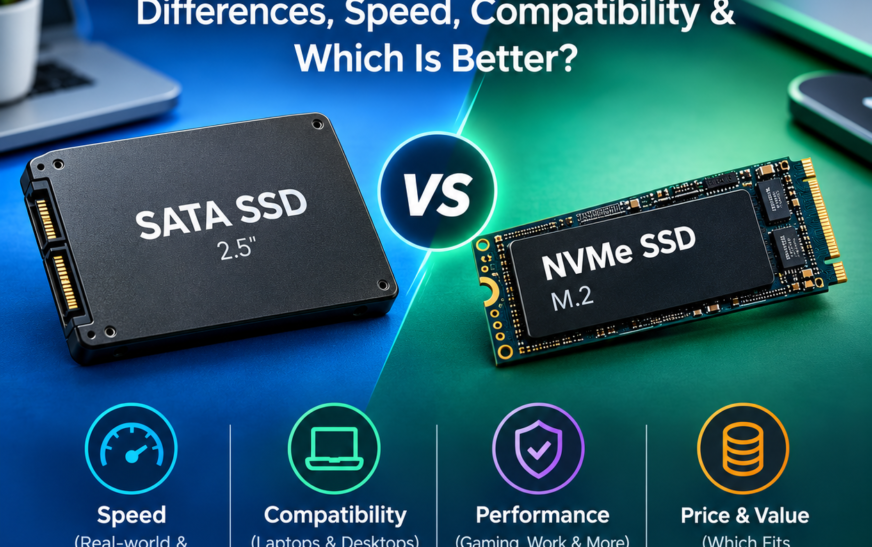
SATA is the older interface. Its practical ceiling is around 550 MB/s. NVMe runs over PCIe and can be several times faster on paper. For everyday use such as booting, browsing and office apps, you will feel the jump from a hard disk to any SSD far more than the jump from SATA to NVMe.
SATA 128 GB SSD
- Fits almost any older PC or laptop
- Usually the lowest price
- Low heat, no cooling worries
SATA limits
- Speed tops out near 550 MB/s
- Not for modern M.2-only devices
NVMe 128 GB SSD
- Much higher throughput
- Great for a fast boot drive on a modern board
- Tiny M.2 form factor
NVMe limits
- Needs an NVMe-capable M.2 slot
- Costs a bit more at the same capacity
An M.2 drive that physically fits can still fail to work if the slot does not support its interface. Confirm your slot’s key, supported interface (SATA, NVMe or both) and supported length in your device manual.
128 GB SSDs you can buy right now
These are the 128 GB models showing as in stock on OnlySSD when this guide was updated. OnlySSD lists free shipping on all orders, secure checkout (cards, net banking, UPI and more) and a technical support team. Prices below are the listed prices on October 14, 2026 and can change, so confirm the final price on the product page.
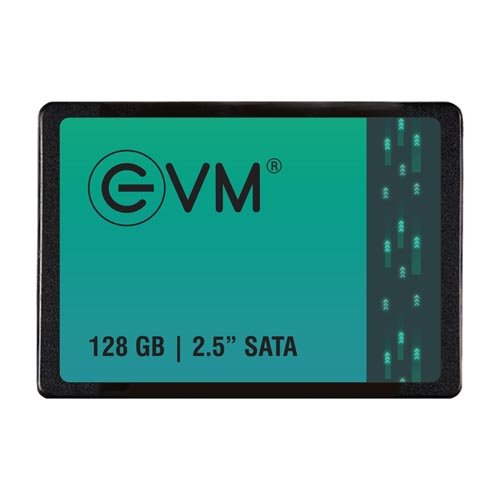
EVM 128GB 2.5 Inch SATA SSD (EVM25/128GB)
₹3,500₹2,073about ₹16.20 per GB
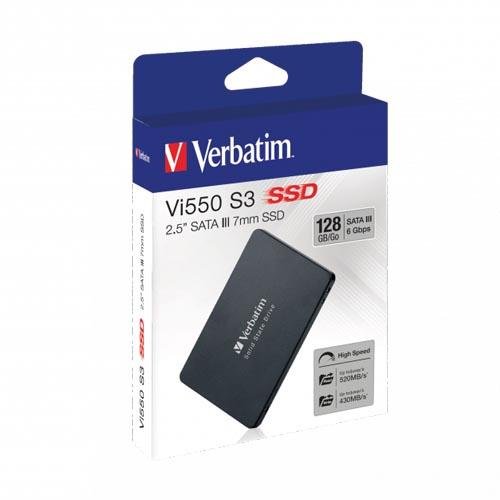
Verbatim 128GB Vi550 S3 SATA SSD (49350)
₹3,760₹2,284about ₹17.84 per GB
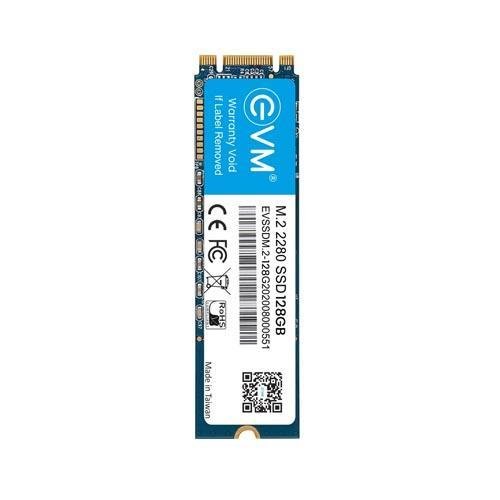
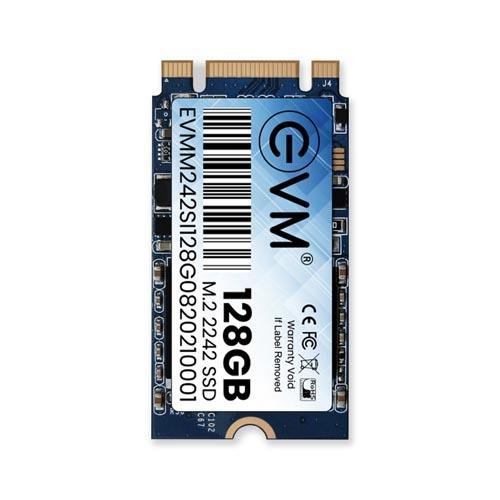
EVM 128GB 2242 M.2 SATA SSD (EVMM242/128GB)
₹4,500₹2,828about ₹22.09 per GB
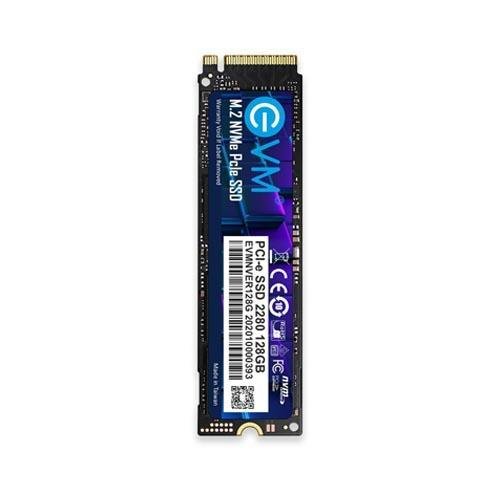
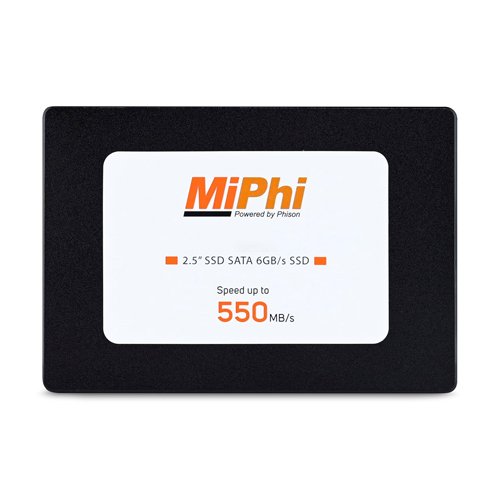
Stock and prices change often. Several other 128 GB models from Silicon Power, Transcend, Zebronics, Gigabyte, Ant Esports and Lexar were listed as out of stock at the time of writing; you can use the “Get notified” option on the store page for those.
See every 128 GB SSD in one place
Filter by interface, brand, speed and warranty, and sort by price or popularity.
Which one should you pick?
| Your situation | Best match |
|---|---|
| Old laptop or desktop with a 2.5-inch hard disk | EVM 2.5-inch SATA or Verbatim Vi550 S3 |
| Laptop with an M.2 slot that supports SATA | EVM M.2 SATA |
| Compact laptop or mini PC with a 2242 slot | EVM 2242 M.2 SATA (confirm the slot supports SATA) |
| Modern PC with an NVMe-capable M.2 slot | EVM NVMe |
| Lowest cost, no special needs | EVM 2.5-inch SATA |
How to choose a 128 GB SSD in 6 steps
- Identify your slot. Check your laptop or motherboard manual for 2.5-inch bays, M.2 slots, mSATA or 2242 mounting points.
- Pick the interface. If the slot supports SATA only, buy a SATA drive. If it supports NVMe, you can buy NVMe.
- Match the size. For M.2, confirm the length (2242 or 2280) and that your board has a mounting standoff at that position.
- Check the warranty. Look for the warranty period on the product page. OnlySSD lists drives with 3-year and 5-year warranties across its range.
- Compare price per GB. At small capacities, the gap between models is only a few hundred rupees, so reliability and compatibility matter more than saving a little.
- Plan your data. Decide whether you will clone your existing drive or do a clean install, and keep your important files backed up first.
Get the most from a small SSD
- Keep 10 to 20 percent free. On a 128 GB drive that is roughly 15 to 25 GB. It keeps the drive responsive and leaves room for Windows updates.
- Store big files elsewhere. Move photos, videos and downloads to a larger drive, an external disk or cloud storage.
- Use Storage Sense. Windows can clear temporary files automatically.
- Install only what you use. Remove unused apps and old installers regularly.
- Move the page and hibernation files only if you know why. On a small drive, turning off hibernation can free several gigabytes, but it also removes the hibernate option.
- Back up. An SSD can fail like any storage device. Keep copies of important files.
How to install and set it up
- Back up your data and, if you plan to clone, make sure the new drive is large enough to hold the used space on the old one.
- Power down and unplug the device. On a laptop, disconnect the battery if your model allows it.
- Swap the drive. Remove the old drive and fit the SSD. M.2 cards go in at a slight angle, then press flat and fasten with the screw.
- Install the operating system from a USB installer, or restore a cloned image.
- Update drivers and Windows, then restore your files and apps.
Is buying from OnlySSD safe?
OnlySSD is run by Prime ABGB Pvt. Ltd. from Lamington Road, Mumbai, and lists a phone number (022 67402027) and email (sales@onlyssd.com) on its site. The store lists free shipping on all orders, secure checkout and a 7-day return window with conditions. Read the shipping, return and refund policies on the store before ordering, and keep your invoice for warranty claims.
Our verdict
A 128 GB SSD is the right buy when the goal is speed on a budget: a boot drive, an old laptop revival, or a light office machine. It is the wrong buy for gaming, editing or a PC that must hold everything for years. For most older machines, a 2.5-inch SATA model like the EVM 128GB or the Verbatim Vi550 S3 is the easy, low-cost upgrade. If your device has a modern NVMe slot, the EVM 128GB NVMe is worth the small extra spend.
Frequently asked questions
Is a 128 GB SSD enough?
It is enough for Windows, office apps, browsing, video calls and a handful of programs. It is tight for gaming, video editing or large photo libraries. A 128 GB SSD works best as a boot drive, or in an older laptop or PC used for basic tasks.
How much usable space does a 128 GB SSD have?
Roughly 119 GB shows up in Windows, because drive makers count in decimal gigabytes and Windows counts in binary. After Windows and updates, many people have around 80 to 90 GB left for their own files.
Can I install Windows 11 on a 128 GB SSD?
Yes. Windows 11 officially requires at least 64 GB of storage, so 128 GB is workable, but updates and temporary files eat into the free space over time.
Should I buy a SATA or NVMe 128 GB SSD?
Buy whichever your device supports. SATA SSDs suit older laptops and desktops and cost less. NVMe SSDs are faster but need an M.2 slot that supports NVMe.
Will a 128 GB SSD make my old laptop faster?
Yes, if the laptop currently uses a hard disk. Boot times, app launches and general responsiveness usually improve dramatically after switching from an HDD to an SSD.
How much free space should I keep on an SSD?
Aim to keep 10 to 20 percent of the drive free. On a 128 GB drive that means leaving around 15 to 25 GB empty for updates, temporary files and consistent performance.
Is 128 GB enough for gaming?
Only for a few small or older games. Many modern titles need tens of gigabytes each, and some need well over 100 GB, so a larger drive is a better choice for a gaming PC.
Does OnlySSD offer free shipping and returns?
OnlySSD lists free shipping on all orders and a 7-day return window, subject to its return policy terms. Check the return policy page before ordering.
Sources and further reading
- OnlySSD: 128 GB SSD listings, prices and stock
- OnlySSD shipping policy and return policy
- Microsoft: Windows 11 system requirements
Prices and availability are from the OnlySSD listing on October 14, 2026 and may change. Always confirm details on the product page and against your own device’s manual.