
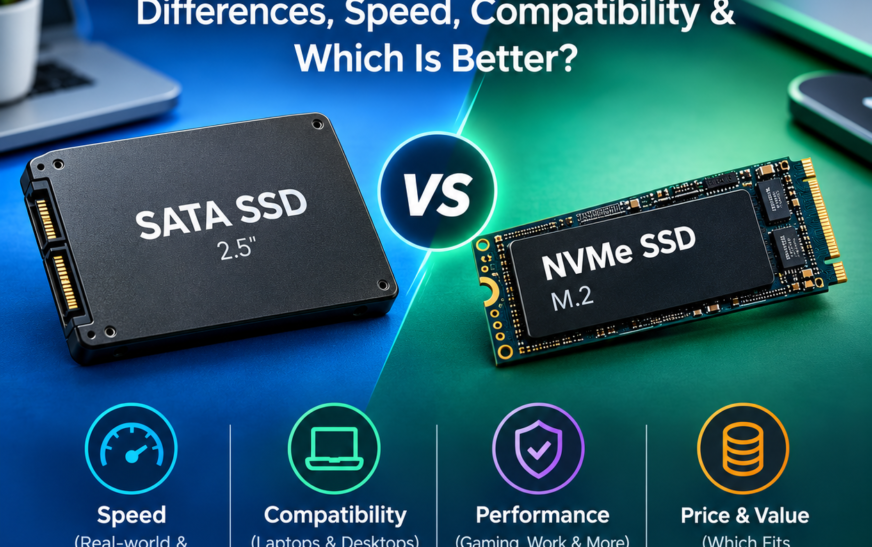
Search for a new drive and you will see “SSD” and “NVMe” used as if they were rivals. They are not quite. SSD describes a type of storage device. NVMe describes the language that device uses to talk to your computer. The comparison most buyers actually need is NVMe SSD vs. SATA SSD, and the real questions are whether your PC supports NVMe, whether you would notice the speed, and what it costs. This guide answers those in order.
Quick answer
NVMe is a protocol, SSD is a device category. In a compatible system, an NVMe SSD can move data several times faster than a SATA SSD and handles many simultaneous requests better. For everyday browsing and office work, though, a good SATA SSD often feels almost the same.
NVMe vs. SATA SSD at a Glance
| Feature | SATA SSD | NVMe SSD |
|---|---|---|
| Storage category | SSD | SSD |
| Protocol | AHCI (built for hard drives) | NVMe (built for flash) |
| Connection | SATA interface | PCIe, usually x4 lanes |
| Form factors | 2.5-inch, M.2 SATA | M.2, add-in card, U.2/U.3 and others |
| Interface ceiling | SATA III: 6 Gb/s, about 600 MB/s usable | PCIe 3.0 x4 about 3.9 GB/s; 4.0 about 7.9 GB/s; 5.0 about 15.8 GB/s |
| Typical drive speed | About 500-560 MB/s | About 3,000 to 14,000+ MB/s, depending on model |
| Latency and parallelism | One command queue, 32 commands | Up to 65,535 queues, up to 65,535 commands each |
| Heat and power | Low heat, easy to cool | Gen 4/5 drives may need heatsinks |
| Best for | Budget upgrades, older PCs and laptops | Modern PCs, creators, developers, large files |
These are interface-level comparisons. Individual drive results vary by model, capacity, firmware, cooling and system. Form factor alone does not tell you the protocol.
What Is an SSD?
A solid-state drive stores data in NAND flash memory chips, with no spinning platters or moving heads. A controller chip manages everything: it maps logical addresses to physical flash cells, spreads writes evenly (wear leveling), corrects errors and handles garbage collection. Many drives also carry a DRAM cache for the mapping table, while cheaper DRAM-less models borrow a small slice of system RAM through Host Memory Buffer.
SSD vs. HDD
- Far lower access time
- No moving parts, quiet
- Better shock resistance
- Faster boot, loading, installs
Where SSDs fall short
- Higher cost per terabyte than HDDs
- Finite write endurance
- Speed can drop when the cache fills
SATA and NVMe
Both are SSDs. They differ in how they connect and communicate, not in the flash inside.
What Is NVMe?
NVMe (Non-Volatile Memory Express) is a protocol written for flash storage. It usually travels over PCI Express, the same high-speed bus used by graphics cards, so the drive talks closely with the CPU instead of going through a SATA controller.
The big design change is queuing. The older AHCI protocol supports one queue with 32 commands, which suited hard drives. NVMe supports up to 65,535 queues, each up to 65,535 commands deep, and is built so many CPU cores can submit requests at once. That cuts overhead and latency, which is why NVMe is standard in modern PCs, data centers and servers.
NVMe vs. SATA SSD: Key Differences Explained
Interface and protocol
SATA uses AHCI over a 6 Gb/s link. NVMe uses its own protocol over PCIe lanes.
Sequential speed
Big file copies are where NVMe pulls clearly ahead, often by 6x or more on mainstream Gen 4 drives.
Random I/O and latency
NVMe handles many small simultaneous requests better, which helps databases, VMs and compiling.
Everyday feel
Opening apps and browsing is often limited by software and CPU, so the gap feels smaller than benchmarks suggest.
Price and capacity
Mainstream NVMe and SATA drives are often priced close together. Always compare cost per gigabyte at the capacity you need.
Compatibility, heat, power
NVMe needs a compatible slot. High-end NVMe runs hotter and may throttle without cooling.
Actual results depend on the drive model, capacity, firmware, workload and the rest of your system.
NVMe vs. SATA SSD Speed: How Much Faster?
The chart shows interface ceilings (what the connection can carry in theory), not what any single drive delivers. SATA III is 6 Gb/s, which works out to roughly 600 MB/s after 8b/10b encoding, and real SATA SSDs land around 500-560 MB/s. PCIe 3.0 and later use more efficient encoding, so a x4 link gives about 3.9, 7.9 and 15.8 GB/s for Gen 3, 4 and 5.
Why a faster number does not always mean a faster PC
- Sequential vs. random: headline MB/s is sequential. Day-to-day work leans on small random reads, where the gap is narrower.
- Cache and capacity: many drives write quickly into an SLC cache, then slow down once it fills. Larger capacities usually sustain more.
- Temperature: a hot controller reduces speed to protect itself.
- Everything else: CPU, RAM, software and network often set the real limit.
M.2 vs. NVMe vs. SATA: What’s the Difference?
M.2 is a shape and connector, not a speed or a protocol. An M.2 drive can be NVMe or SATA. Meanwhile NVMe drives also come as add-in cards and server formats.
Classic drive
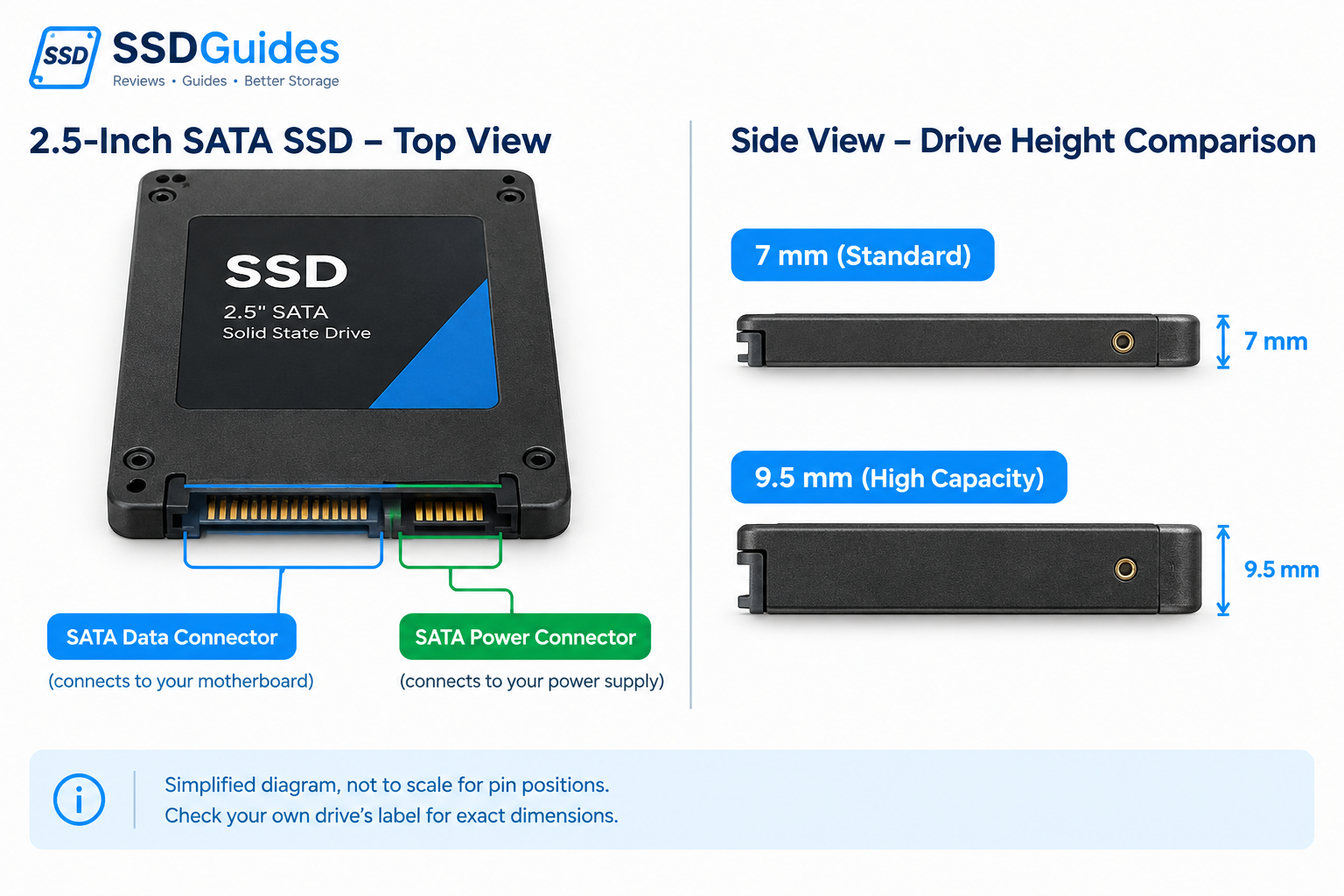
A 2.5-inch case with a SATA data and power connector. Always SATA.
Small stick, SATA speed
Usually a B+M key edge. Slot must support SATA mode.
Small stick, PCIe speed
Usually an M key edge. Slot must support PCIe NVMe mode.
PCIe card SSD
Plugs into a PCIe slot. Common on desktops and workstations.
PCIe Gen 3 vs. Gen 4 vs. Gen 5 NVMe SSDs
| Generation | x4 link bandwidth | Typical marketed drive speed | Cooling | Sensible when |
|---|---|---|---|---|
| PCIe 3.0 | ~3.9 GB/s | Up to ~3,500 MB/s | Usually none needed | Older boards, budget builds |
| PCIe 4.0 | ~7.9 GB/s | Up to ~7,500 MB/s | Heatsink recommended | Best value for most modern PCs |
| PCIe 5.0 | ~15.8 GB/s | Roughly 10,000-14,900 MB/s | Heatsink needed | Heavy large-file workloads on a Gen 5 platform |
- Backward compatible: a Gen 5 drive in a Gen 4 slot runs at Gen 4 speed, and the reverse holds too. The slowest link wins.
- Platform limits: some boards give Gen 5 only to one slot, or drop lanes when other slots are used.
- Heat: Gen 5 controllers run hot and may throttle in tight cases or under a laptop-style heat spreader.
- Value: a good Gen 4 drive is often the smarter buy. Pay for Gen 5 only if your work moves huge files regularly.
Real-World Performance: Does NVMe Make a Difference?
| Use case | Does NVMe help? | What else matters |
|---|---|---|
| Windows and app startup | Small gain over SATA SSD | CPU, firmware initialization, startup apps |
| Browsing and office work | Rarely noticeable | RAM, CPU, network |
| Large file copies | Yes, often large | Source drive speed, cache, cooling |
| Photo and video editing | Yes, with 4K+ footage and big caches | GPU, RAM, codec |
| Software development | Moderate, mainly big projects | CPU cores, RAM |
| VMs and databases | Yes, strong in random I/O | RAM, DRAM cache, sustained speed |
Moving from a hard drive to any SSD is a dramatic change. Moving from a SATA SSD to NVMe is usually a smaller, workload-specific one.
NVMe vs. SATA SSD for Gaming
Loading and streaming
NVMe can shorten loading in some games, but many titles show only small differences versus SATA because CPU and engine work dominate.
FPS
Storage does not raise average FPS. Your GPU and CPU do that. NVMe may reduce stutter in games that stream large assets.
DirectStorage
Microsoft’s API lets supported games load assets faster, and NVMe is the recommended storage. It needs game support and a compatible system.
SATA is enough when
You play mostly older or esports titles, or you want cheap bulk game storage.
Choose NVMe when
You install large games often, want the fastest loads, or build a new PC where NVMe costs about the same.
See also our gaming SSD reviews.
NVMe vs. SATA SSD for Laptops and Desktops
Laptops
- Check slot type: NVMe, SATA or both
- Confirm length (2230, 2242, 2280) and single or double-sided limits
- Look for thermal pads and tight airflow
- Check upgrade access and warranty terms
- Verify specs in the maker’s service manual
Desktops
- Count M.2 slots and note which are Gen 4/5
- Watch lane sharing: an M.2 slot may disable SATA ports
- Use the board heatsink and keep airflow clear
- Mix freely: NVMe for OS, SATA for bulk storage
Price, Capacity, Endurance and Reliability
Cost per GB
Compare price divided by capacity. SSD prices move with the NAND market, so check current listings.
TLC vs. QLC
TLC usually gives better sustained speed and endurance. QLC stores more per cell and costs less, but slows down sooner on long writes.
SLC cache
Part of the flash acts as fast temporary storage. Big continuous writes can outrun it, and speed drops.
TBW and warranty
TBW is the total terabytes the maker rates for writes. Compare it with warranty length. Typical home users rarely approach it.
SMART and backups
Check drive health with SMART tools, and keep backups. Any SSD can fail suddenly.
NVMe does not automatically mean longer life or better reliability. Endurance depends on the NAND type, controller, capacity and warranty, not on the protocol.
How to Check Whether Your Computer Supports NVMe
- Identify the exact laptop or motherboard model.
- Open its official spec sheet and service manual.
- Confirm NVMe support, PCIe generation and supported form factors.
- Check slot count and lane-sharing notes (some slots disable SATA ports).
- Confirm UEFI/BIOS and operating-system boot support where relevant.
- Check physical clearance, length and heatsink space.
- Back up your data before installing or migrating.
Get-PhysicalDisk | Select FriendlyName, BusType. Linux: lsblk -d -o NAME,TRAN,MODEL. Also look for “NVM Express” under Storage controllers in Device Manager.Quick decision path
| If your slot or device says… | Then… |
|---|---|
| M.2, supports PCIe/NVMe | Buy M.2 NVMe, matching the length and PCIe generation. |
| M.2, SATA only | Buy M.2 SATA. An NVMe drive will not work. |
| M.2, supports both | Choose by budget and workload. |
| No M.2 slot, has 2.5-inch bay | Buy a 2.5-inch SATA SSD. |
| Unclear | Read the manual or ask the manufacturer before buying. |
How to Upgrade from SATA SSD to NVMe SSD
- Confirm slot compatibility using the section above.
- Pick capacity and performance. Leave free space, since full drives slow down.
- Back up important files.
- Choose to clone your old drive or do a clean install of the OS.
- Power off, unplug, install the drive and secure it with the screw. Add a heatsink if needed.
- Check that BIOS/UEFI detects the drive, then set boot order.
- Verify health and speed with a SMART and benchmark tool after install.
Exact steps vary by model, so follow your manufacturer’s instructions. More in our SSD upgrade guides.
Which Should You Choose? By User Type
| User | Recommended | Why |
|---|---|---|
| Budget-conscious | SATA or entry NVMe, whichever costs less per GB | Both are far faster than a hard drive |
| Home and office | Either; NVMe if the slot exists | Little everyday difference |
| Gamers | Gen 3 or Gen 4 NVMe | Faster installs and loads, small price premium |
| Video editors, creators | Gen 4 NVMe, with cooling | Large files and cache benefit from speed |
| Developers, power users | Gen 4 NVMe with DRAM | Better random and mixed performance |
| Workstations, servers | Enterprise NVMe (U.2/U.3 and similar) | Endurance, consistency, queue depth |
| Old laptop upgrade | Match the slot: SATA if the slot is SATA-only | Compatibility comes before speed |
Need picks? See our best SSDs of 2026.
Common NVMe and SSD Myths
Frequently Asked Questions
Is NVMe better than SSD?
That compares a protocol with a category. NVMe SSDs are a faster type of SSD than SATA SSDs, if your system supports them.
Is NVMe faster than SATA SSD?
Yes in sequential and many random workloads, often by a large margin. Everyday tasks may feel similar.
Is NVMe the same as M.2?
No. M.2 is a connector and form factor. NVMe is a protocol.
Can an M.2 SSD be SATA?
Yes. M.2 SATA drives exist, and they run at SATA speeds.
Can I use an NVMe SSD in a SATA-only slot?
No. An NVMe drive needs a slot with PCIe support.
Can I use SATA and NVMe SSDs together?
Yes, if your system has both. Check for lane sharing that may disable a SATA port.
Is NVMe worth it for gaming?
It helps with load times and large installs, not average FPS. A SATA SSD is still fine for many players.
Does NVMe improve boot time?
Slightly, at most. Firmware and OS startup take most of the time.
Do NVMe SSDs need heatsinks?
Gen 3 often does not. Gen 4 benefits from one, and Gen 5 generally needs one.
Is PCIe Gen 4 better than Gen 3?
It offers double the bandwidth. You notice it mainly in big transfers.
Can I upgrade my laptop to NVMe?
Only if it has a compatible M.2 slot. Check the manual first.
How do I check whether my SSD is NVMe or SATA?
Use the PowerShell command above, Device Manager, the drive label, or the manufacturer’s spec page.
Final Verdict: Is NVMe Worth It?
If your system supports it and you edit video, game, develop software, run VMs or move large files often. On a new build it usually costs little extra.
If your device is SATA-only, you do light work, or you want cheap bulk storage. A SATA SSD still beats any hard drive by a wide margin.
Slot protocol, PCIe generation, lane sharing, drive length and cooling.
Price and your actual workload matter more than headline speed. A reliable Gen 4 drive from a reputable brand is a solid pick for most people.
Best SSDs in 2026 M.2 NGFF explained 2.5-inch SATA SSD guide Samsung 990 Pro review