
Will a 2.5-inch SATA SSD fit your laptop, and is it still worth buying?
Short answer: yes to both, as long as your computer has a 2.5-inch drive bay (or a spare SATA port) with room for the drive’s height. A SATA SSD is the simplest, cheapest way to replace a slow hard drive, and it works in a huge range of older laptops, desktops, mini PCs and consoles. If your machine has a free NVMe slot, though, an NVMe drive is usually the faster choice for similar money.
Fits: 2.5″ baysInterface: SATA IIIBest for: HDD upgradesLast reviewed: October 2026. Speeds, prices and warranty terms vary by model, so always confirm them on the manufacturer’s datasheet before you buy.
Quick answer: 2.5-inch SATA SSD at a glance
What is a 2.5-inch SATA SSD drive?
Two labels are packed into the name, and each answers a different question.
2.5-inch
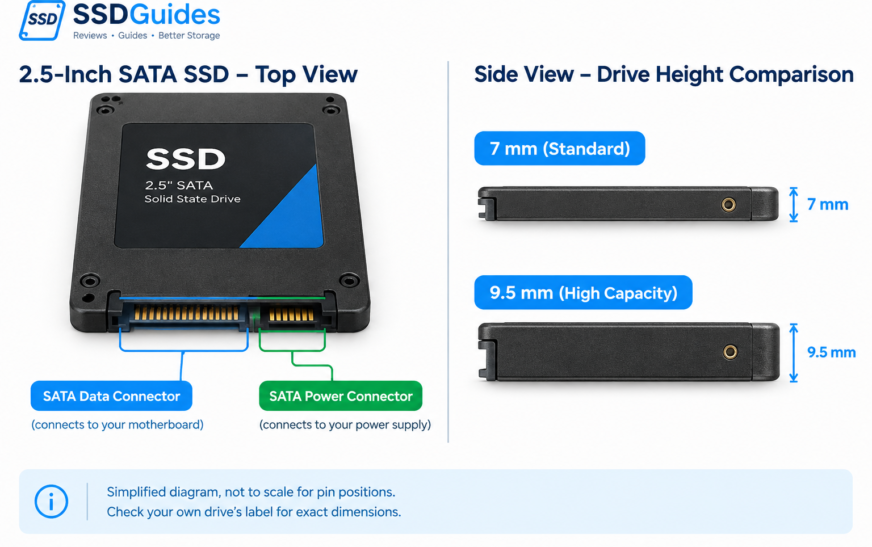
This describes the physical shell. It was inherited from laptop hard drives, so an SSD in this shape can drop into the bay a laptop HDD used to occupy. The “2.5 inches” is a nominal name, not a ruler measurement of the case.
SATA
This describes how the drive talks to the computer. SATA III runs at 6 Gb/s, and after encoding overhead that leaves roughly 600 MB/s of usable bandwidth. That ceiling is why nearly every SATA SSD tops out near 550 MB/s.
Controller, NAND, firmware
The controller manages data placement, error correction and wear. The NAND flash stores your files. Some models add a DRAM chip to cache the mapping table. In many 2.5-inch drives the circuit board fills only a fraction of the shell.
The connector, explained in plain English
| Part | What it does | Good to know |
|---|---|---|
| 7-pin data connector | Carries data between the drive and the motherboard or laptop | The L-shaped keying stops you plugging it in the wrong way |
| 15-pin power connector | Receives power from the PSU or laptop bay | Most 2.5-inch SSDs run mainly from the 5 V supply |
| Laptop bay connector | Combines data and power in a single block | The drive plugs straight in, no cables needed |
Will it fit your computer?
Fit comes down to three checks: the bay or port exists, the height works, and the connectors match. The details differ between laptops and desktops.
Laptops
Bay present
Many laptops made roughly before 2018, and many business and gaming models since, include a 2.5-inch bay. Ultrabooks often replaced it with an M.2 slot or soldered storage.
Height limit
Thin laptops often accept only 7 mm drives. Older, thicker models may take 9.5 mm. A 7 mm SSD works in both, sometimes with a spacer.
Caddy or bracket
Some models hold the drive in a metal or plastic caddy with screws. Keep the original, since a new SSD usually does not include one.
Why the exact model matters: two laptops with the same name can ship with different internal layouts across production runs, and some product lines offer both 2.5-inch and M.2 variants. Search for your full model number plus “service manual” or “hard drive replacement”, and look at the photographs of the storage area.
Desktops
- Mounting: many cases have dedicated 2.5-inch mounts, often behind the motherboard tray. If not, a cheap 2.5-to-3.5-inch bracket lets the SSD sit in a standard bay.
- Cables: you need one SATA data cable to the motherboard and one SATA power connector from the power supply.
- Port sharing: on some motherboards, using certain M.2 slots disables specific SATA ports. Check the manual if a port appears dead.
- Port speed: older boards may offer SATA II ports. The drive still works, just at roughly half speed.
- Find the exact model number on the laptop’s underside sticker or in system settings.
- Open the manufacturer’s service manual or a teardown guide for that model.
- Confirm the storage is a 2.5-inch bay and note the maximum height.
- Look at your current drive’s label. If it says 7 mm, a 7 mm SSD will fit.
- Optionally, run the compatibility tool offered by major SSD makers before ordering.
SATA SSD vs HDD vs NVMe: which fits which job?
| Factor | 2.5″ SATA SSD | Laptop HDD | M.2 NVMe SSD |
|---|---|---|---|
| Interface limit | SATA III, about 600 MB/s ceiling | SATA, limited by the spinning platter | PCIe, from about 3,500 MB/s (Gen3) to well above 10,000 MB/s on newer Gen5 drives |
| Everyday feel | Fast: quick boots, quick app launches | Slow when many small files are touched | Fastest, though the jump from SATA is less noticeable in light use |
| Physical compatibility | Fits legacy 2.5″ bays and desktop SATA ports | Same bays as SATA SSD | Needs an M.2 slot with NVMe support |
| Durability | No moving parts, more tolerant of knocks | Moving parts, sensitive to drops | No moving parts |
| Noise and heat | Silent, low heat | Audible spin and seek noise | Silent, but fast drives may need a heatsink |
| Cost per terabyte | Moderate | Generally the lowest | Often close to SATA, so compare current prices |
| Best for | Upgrading older machines, secondary storage, consoles and mini PCs | Bulk, low-cost storage where speed is secondary | New builds and modern laptops with a free slot |
Choose SATA SSD when
Your device has a 2.5-inch bay or SATA port and no usable NVMe slot, or you want an easy, low-risk drop-in upgrade.
Choose NVMe when
You have a compatible M.2 slot and prices are similar. It gives more headroom for large file transfers and heavy workloads.
Keep an HDD when
You need lots of cheap capacity for archives or media and do not care about speed. A hybrid setup of SSD plus HDD is common.
What speed should you actually expect?
Advertised numbers are usually best-case sequential speeds: reading or writing one large file in a straight line. Daily computing is different. Starting Windows or opening a browser means touching thousands of small files in scattered places, which is governed by random access performance and latency.
Illustrative, rounded maximums. Real drives vary by model, capacity and workload.
A simple example: replacing a mechanical HDD
Imagine an older laptop with a 5400 RPM hard drive. Each time Windows needs a file, the read head must physically move and wait for the platter to rotate into position. An SSD has no such wait. Instead of lengthy pauses while apps load, you tend to see windows open quickly, updates complete sooner and the whole system feel less sluggish. The improvement is usually the most dramatic upgrade you can make to a machine like that. We are not promising a specific boot time, because CPU, RAM, Windows version and installed software all influence the result.
Why your drive may be slower than the label
- Fill level: drives with little free space tend to write more slowly.
- SLC cache exhaustion: many drives write fast into a small cache, then slow down during long transfers, especially QLC models.
- Port limits: a SATA II port or a USB enclosure can cap the speed below the drive’s potential.
- Power and thermal settings: laptops may throttle storage to save power on battery.
Which capacity should you buy?
Operating systems report capacity in binary units, so a drive sold as 1 TB shows as about 931 GB in Windows. That is normal, not a defect.
| Labeled size | Approx. shown in Windows | Best for | Watch out for |
|---|---|---|---|
| 250 GB | About 233 GB | Basic office use, a light second computer, or an older laptop with few apps | Fills quickly once Windows updates and a few programs are installed |
| 500 GB | About 466 GB | A comfortable main drive for everyday users and students | Tight if you keep large photo libraries or several games |
| 1 TB | About 931 GB | The sweet spot for most upgrades, with room for apps, files and some games | Check price per terabyte against 2 TB |
| 2 TB | About 1.8 TB | Creators, large game libraries, or an all-in-one drive that replaces an HDD | Higher upfront cost, so make sure the machine is worth upgrading |
Features worth checking before you buy
Length and terms
Many consumer SATA SSDs carry three to five years. Check whether the warranty is also limited by a written-data amount.
TBW rating
Terabytes Written is the amount of data the maker guarantees you can write over the warranty. Higher is better, but most home users never come close.
TLC vs QLC
TLC usually offers better endurance and steadier writes. QLC is often cheaper per gigabyte but can slow more during long writes.
Sustained writes
Look for reviews that test what happens after the cache fills, not just the headline speed.
DRAM or DRAM-less
A DRAM cache can help consistency under mixed workloads. Many good budget SATA drives skip it, so judge by tested results.
Seller and model reviews
Buy from authorized sellers to avoid counterfeits, and read reviews for your exact model and capacity.
A quick TBW reality check
Say a 1 TB drive is rated for 300 TBW. If you write 30 GB per day, which is a lot for typical home use, you would take about 10,000 days to reach that figure, which is over 27 years. Endurance matters for servers, heavy video work and constant downloads, but is rarely the deciding factor for a normal upgrade.
Installation and migration checklist
Choose your migration method
| Method | Best when | Trade-off |
|---|---|---|
| Clone the old drive | You want Windows, apps and settings exactly as they are | Old problems come along too, and the used space must fit on the new drive |
| Fresh install | The system is cluttered or you want a clean start | You reinstall apps and restore files yourself |
Step-by-step
- Back up first. Copy your important files to an external drive or cloud storage. A migration should never be your only copy.
- Prepare the tools. You will need a small screwdriver, and for cloning a SATA-to-USB adapter or enclosure, plus cloning software from the SSD maker or a trusted free tool.
- Clone or prepare a fresh install. For cloning, connect the new SSD by USB and copy the old drive across. For a fresh install, create a Windows installation USB.
- Power down and disconnect. Shut down, unplug the charger, and remove the battery if it is removable. Touch bare metal to discharge static.
- Swap the drive. Remove the old drive, move the caddy or screws to the new SSD, and slide it firmly into the connector. For a desktop, mount it and attach the SATA data and power cables.
- Boot and verify. Start the computer and confirm it boots from the SSD. Keep the old drive untouched until you have checked that everything works.
Verify the drive is detected and healthy
- The drive appears in the BIOS or UEFI storage list.
- It shows up in Windows Disk Management with the expected capacity. If it shows as unallocated, initialize it and create a volume.
- The SATA mode is set to AHCI, not legacy IDE, unless your system requires otherwise.
- TRIM is active. In an administrator command prompt, run
fsutil behavior query DisableDeleteNotify. A result of 0 means TRIM is enabled. - A drive-health utility reports normal SMART status.
Troubleshooting and FAQs
| Problem | Likely cause | What to try |
|---|---|---|
| SSD not detected in BIOS | Loose connection, faulty cable or port, disabled port | Reseat the drive, try another SATA cable and port, check the BIOS for disabled ports, and test the drive in another computer |
| Detected in BIOS, missing in Windows | Drive not initialized or has no volume | Open Disk Management, initialize the disk (GPT for modern systems), then create a simple volume |
| Drive will not fit or press in | Height or caddy mismatch | Compare the bay’s height limit to the drive. Use the caddy from the old drive and do not force it |
| Speeds around 300 MB/s | SATA II port or cable limit | Move the drive to a SATA III port and check the BIOS or motherboard manual |
| Speeds drop during big copies | SLC cache is full, drive nearly full, or thermal or power throttling | Free up space, check sustained-write reviews, and plug the laptop in |
| Clone will not boot | Wrong boot mode or drive order | Select the SSD as the boot device and match the original boot mode (UEFI or legacy) |
Is a 2.5-inch SATA SSD still worth buying?
Can I use a SATA III SSD in a SATA II slot?
Will a 7 mm SSD fit a 9.5 mm bay?
Can I use a 2.5-inch SATA SSD as external storage?
Can I put a SATA SSD in a games console?
How long will a SATA SSD last?
Final buying decision: should you buy SATA?
Our verdict
A 2.5-inch SATA SSD remains a smart, low-risk upgrade for any machine with a compatible bay or port. It will not match the headline speeds of NVMe, but for replacing a hard drive it delivers the change you will notice most. Match the size to your needs, check the height and slot type, and favor a reputable seller and a clear warranty over a bargain-bin price.
- Verify your exact model and bay height.
- Pick a capacity one step above your current use.
- Prefer TLC and a solid warranty for a main drive.
- Back up before any migration.
Technical basis: interface and form-factor details follow publicly documented SATA and 2.5-inch drive standards (for example, the SATA-IO specifications and SFF drive form-factor documents) and manufacturer datasheets. Figures such as speeds and endurance are typical ranges, not guarantees for any single model.

Jon Coulter
Jon joined TweakTown in 2013 and has since reviewed hundreds of SSDs, HDDs, and storage devices. Jon became a computer enthusiast when Windows XP launched. He was into water cooling and benching ATI video cards with modded drivers. Jon has been building computers for others for more than 20 years. Jon became a storage enthusiast the day he first booted an Intel X25-M G1 80GB SSD. Look for Jon to bring consumer SSD reviews into the spotlight.
- Internal SSDs: Reviews, Comparisons & Buying Guides October 15, 2026
- NVMe vs SSD: Differences, Speed & Which Is Better October 14, 2026
- Buy 128 GB SSD Online: Best Prices and Picks October 14, 2026
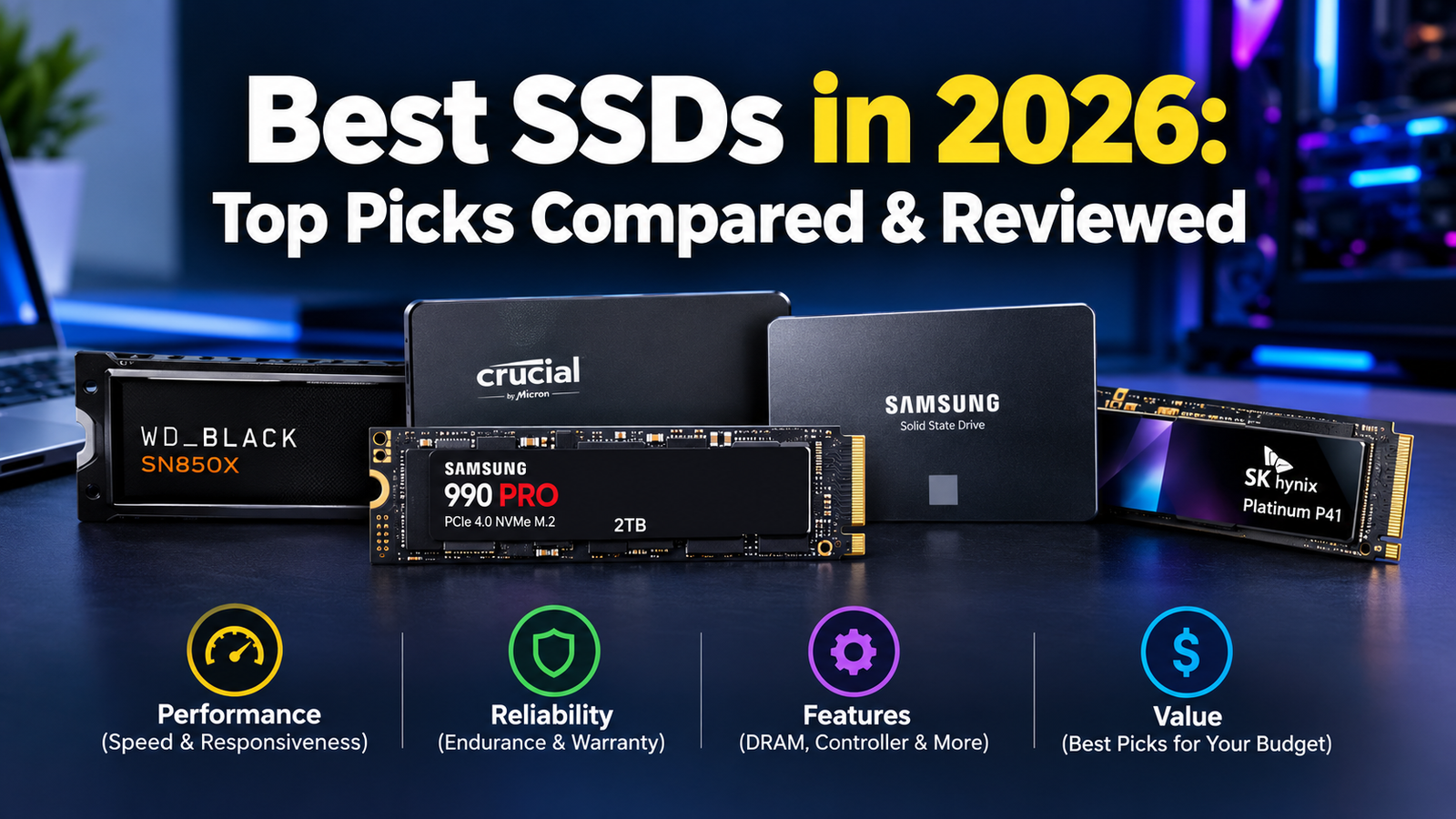
- Best SSDs in 2026: Which Drive Is Actually Worth Your Money? October 14, 2026
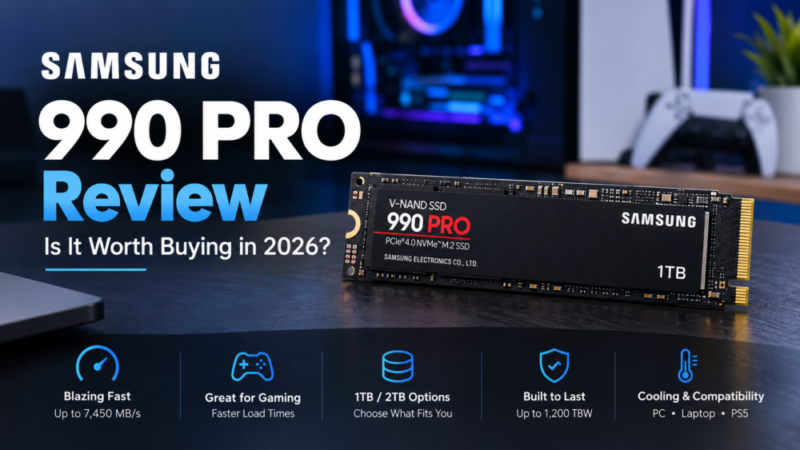
- Samsung's 990 Pro SSD October 14, 2026
Our Fact Checking Process
We prioritize accuracy and integrity in our content. Here's how we maintain high standards:
- Expert Review: All articles are reviewed by subject matter experts.
- Source Validation: Information is backed by credible, up-to-date sources.
- Transparency: We clearly cite references and disclose potential conflicts.
Our Review Board
Our content is carefully reviewed by experienced professionals to ensure accuracy and relevance.
- Qualified Experts: Each article is assessed by specialists with field-specific knowledge.
- Up-to-date Insights: We incorporate the latest research, trends, and standards.
- Commitment to Quality: Reviewers ensure clarity, correctness, and completeness.
Look for the expert-reviewed label to read content you can trust.



1 Comment
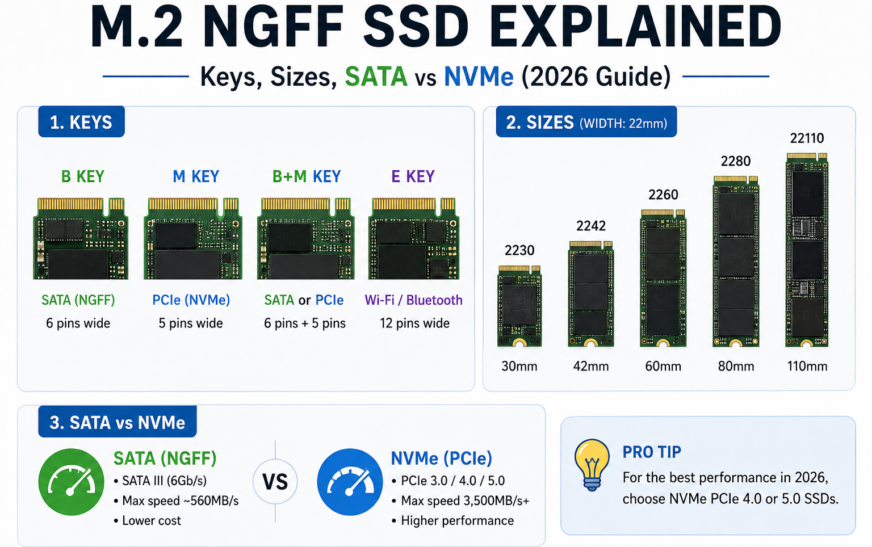
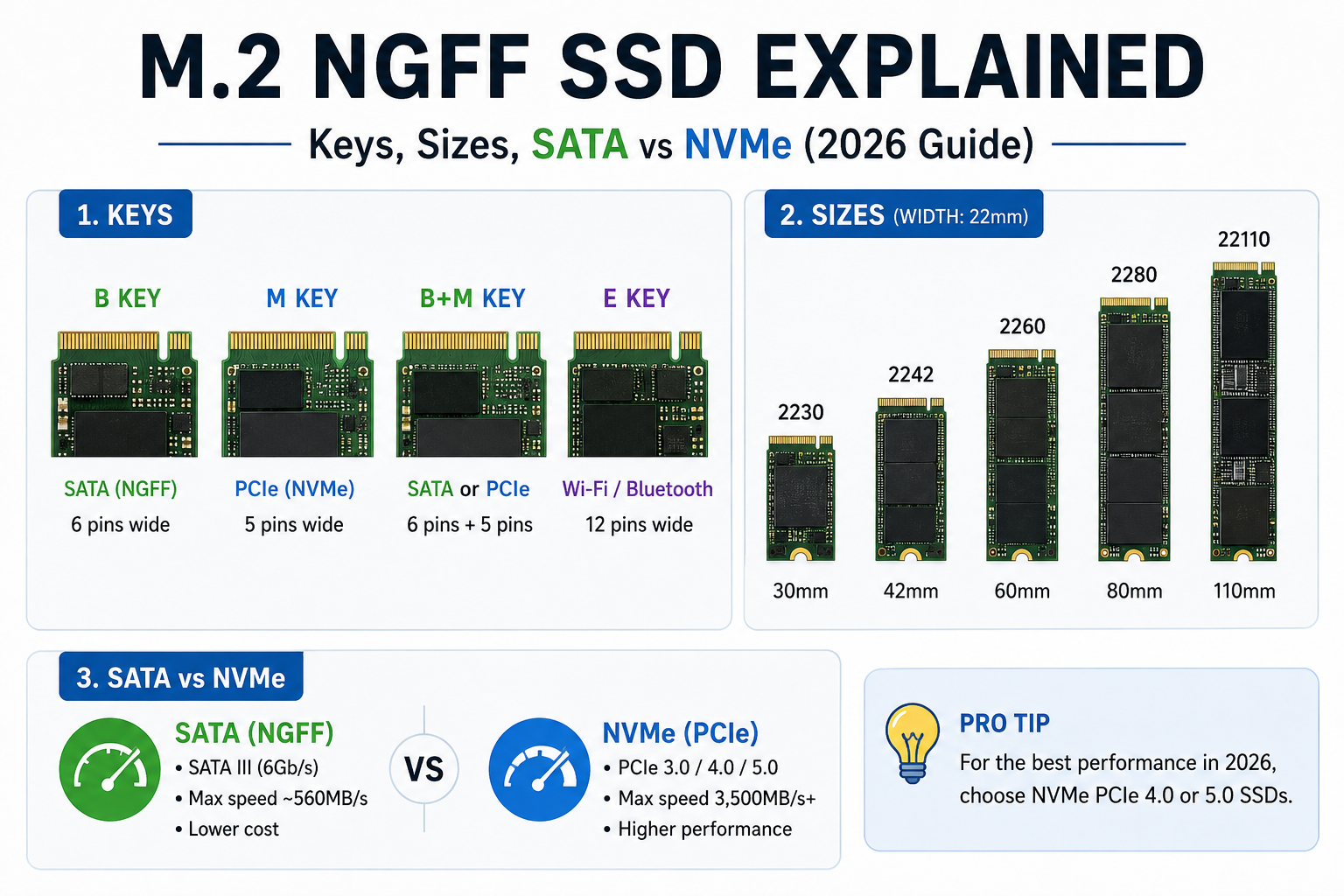
[…] Why a drive that fits may not work: some M.2 slots are SATA-only, some are NVMe-only, and some support both. Key notches (M, B, B+M), length (2242, 2260, 2280, 22110) and thickness are only part of the check. Always confirm protocol support in your laptop or motherboard manual. See our full M.2 NGFF SSD guide and the 2.5-inch SATA SSD guide. […]