
Choosing an internal SSD isn’t about finding the drive with the biggest advertised speed. The right pick depends on what your computer actually supports, how much storage you need, and whether you’re reviving an older laptop, building a gaming PC, or handling large files. SSDGuides helps you narrow options by compatibility first, then performance, capacity, endurance and value, before you spend a rupee.
Find the Right Internal SSD for Your Computer
Answer two questions and get a starting point. This is a shortlist tool, not a guarantee: always confirm your exact laptop or motherboard model in its manual before buying.
Browse by Drive Type
NVMe SSDs
M.2 compatibility, PCIe generations and which slot suits which drive.
SATA SSDs
2.5-inch drives and the simplest upgrade for older PCs.
Gaming SSDs
Capacity, load behaviour and supported console storage.
Laptop SSD Upgrades
Slot checks, drive length and thermal limits in thin notebooks.
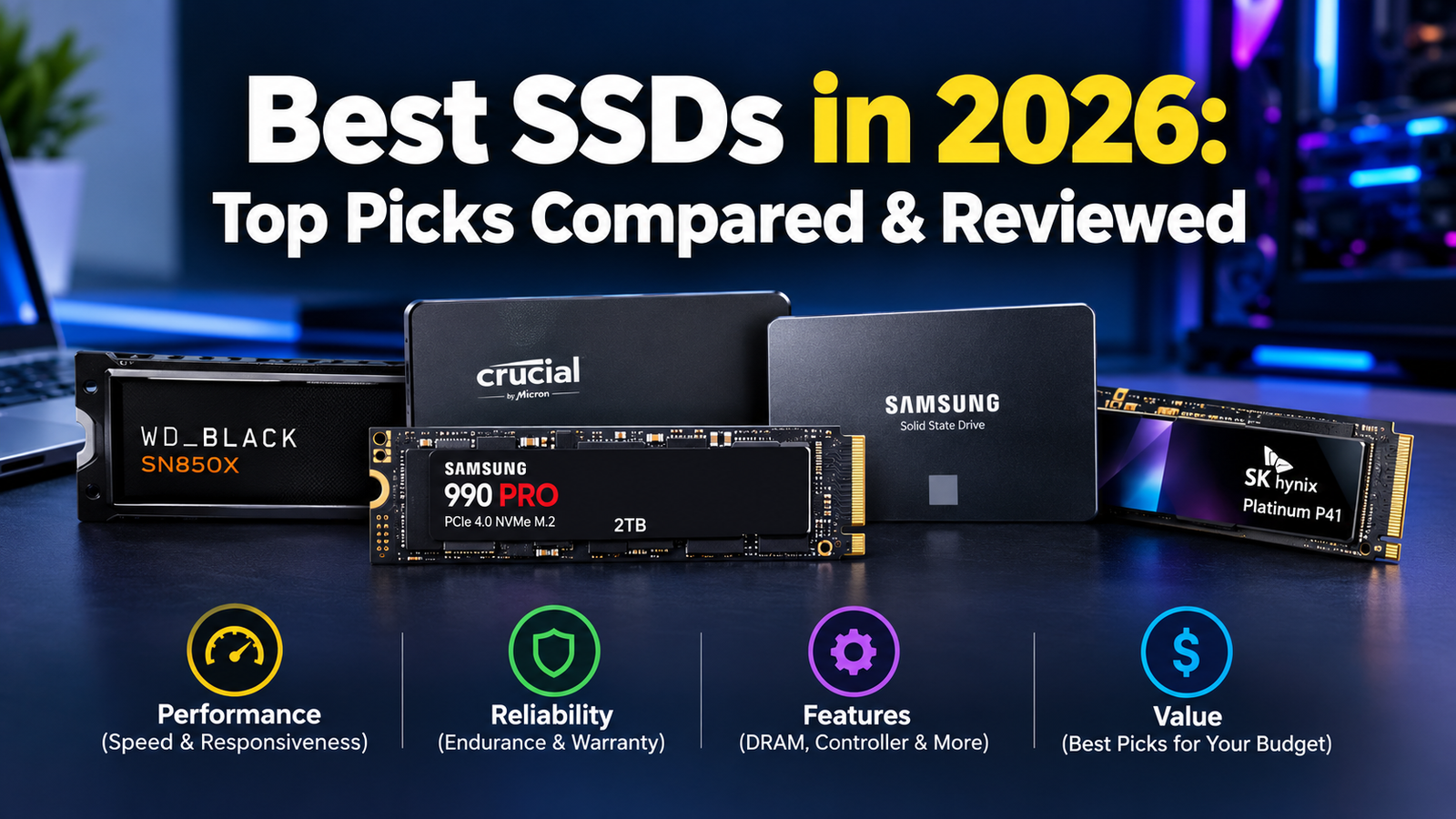
Best Internal SSDs at a Glance
Each pick serves a different need. We selected them from published manufacturer specifications and independent reviews rather than from our own lab testing, and we never rank a drive higher purely for a bigger sequential-read number. Prices move often, so check the current listing before buying.
Samsung 990 PRO
PCIe 4.0 x4, M.2 2280, dedicated DRAM. Strong consistency and mature firmware make it the safe choice for most modern PCs and PS5.
- Consistent under sustained load
- Often costs more than rivals
Lexar NM790
PCIe 4.0 x4, M.2 2280, DRAM-less with host memory buffer. Near-flagship speeds with a higher endurance rating per terabyte than many peers.
- Cost per TB, high endurance
- No DRAM; heavy sustained writes may slow
WD_BLACK SN850X
PCIe 4.0 x4 with DRAM, and heatsink versions available for consoles and tight cases. Quick random access suits large game libraries.
- Heatsink option, up to 4TB
- Runs warm without airflow
Samsung 990 EVO Plus
PCIe 4.0 (or 5.0 x2 on supporting systems), M.2 2280, DRAM-less. Efficient, cool-running and sensible for notebooks without cooling room.
- Lower power and heat
- Not built for constant heavy writes
Samsung 9100 PRO (4TB)
PCIe 5.0 x4, M.2 2280, DRAM. For creators moving huge files on a Gen 5 slot with real cooling.
- Top-tier speed and endurance
- Expensive, hot, needs heatsink
Samsung 870 EVO
SATA III, 2.5-inch, 7mm. Drop-in replacement for old hard drives and a dependable choice for pre-NVMe systems.
- Works in almost any 2.5-inch bay
- Capped by the SATA interface
Want the full ranked list with pricing context? See Best SSDs in 2026.
Compare Internal SSDs by Performance, Capacity & Value
All speeds below are manufacturer-rated figures, not independent measurements. Real-world results depend on your platform, drive fill level and cooling. Verify against the current datasheet, since manufacturers revise specs by capacity.
| Model | Interface | Form factor | Capacities | Rated read/write (MB/s) | DRAM | Endurance (1TB) |
|---|---|---|---|---|---|---|
| Samsung 9100 PRO | PCIe 5.0 x4 NVMe | M.2 2280 | 1–8TB | Up to 14,800 / 13,400 | Yes | 600 TBW |
| Samsung 990 PRO | PCIe 4.0 x4 NVMe | M.2 2280 | 1–4TB | Up to 7,450 / 6,900 | Yes | 600 TBW |
| WD_BLACK SN850X | PCIe 4.0 x4 NVMe | M.2 2280 | 1–8TB | Up to 7,300 / 6,600 | Yes | 600 TBW |
| Lexar NM790 | PCIe 4.0 x4 NVMe | M.2 2280 | 1–4TB | Up to 7,400 / 6,500 | No (HMB) | 750 TBW |
| Samsung 990 EVO Plus | PCIe 4.0 x4 / 5.0 x2 | M.2 2280 | 1–4TB | Up to 7,250 / 6,300 | No (HMB) | 600 TBW |
| Samsung 870 EVO | SATA III 6Gb/s | 2.5-inch, 7mm | 250GB–4TB | Up to 560 / 530 | Yes | 600 TBW |
Endurance (TBW) scales with capacity: a 2TB model is typically rated at roughly double the 1TB figure.
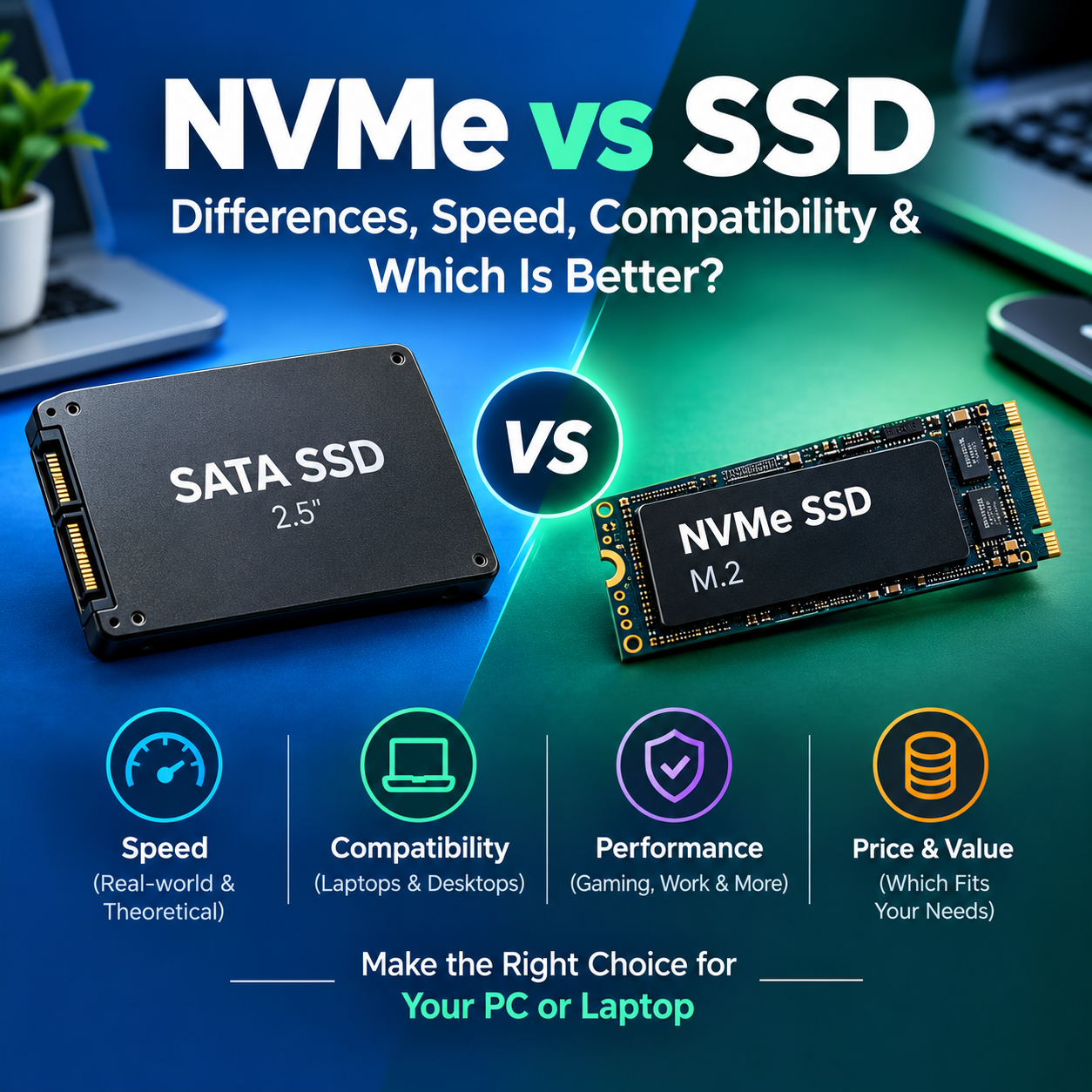
NVMe vs. SATA: Which Internal SSD Do You Need?
Four separate ideas get mixed up in product listings. Keeping them apart prevents most wrong purchases.
Form factor
The physical shape: 2.5-inch or M.2 (2280 means 22mm wide, 80mm long).
Interface
The electrical connection: SATA or PCIe. This sets the bandwidth ceiling.
Protocol
The language the drive speaks: AHCI for SATA, NVMe for PCIe. NVMe handles many queued requests in parallel.
PCIe generation
Gen 3, 4 and 5 roughly double bandwidth each step, but the slot and CPU must support it. Newer drives work in older slots at lower speed.
| Feature | SATA SSD | NVMe SSD |
|---|---|---|
| Common form factors | 2.5-inch; some M.2 SATA | M.2 (most common), U.2, add-in cards |
| Interface | SATA III, about 560MB/s real ceiling | PCIe x4, from about 3,500 to over 14,000MB/s rated |
| Typical use | Older systems, basic upgrades, bulk storage | Modern desktops, laptops, gaming, creative work |
| Compatibility | Needs a SATA port and drive bay | Needs a PCIe/NVMe-capable M.2 slot |
| Check before buying | Bay, connector, drive thickness | Slot keying, protocol, supported PCIe generation, clearance |
How to Choose an Internal SSD
Check compatibility first
Confirm supported drive size, interface, free slots and boot support in your device manual. Laptops often accept only one M.2 length.
Choose capacity honestly
500GB suits a light-use laptop, 1TB is the practical floor for most gamers and professionals, 2TB gives headroom for big libraries, and 4TB suits video or archives. Drives also slow when nearly full, so leave 10–20% free.
Compare realistic performance
Sequential speed matters for large files. Random read/write and sustained writes matter more for everyday responsiveness and long copies.
Understand endurance
TBW is the total data the maker rates the drive to write under warranty. A 600 TBW drive is about 330GB written daily for five years. Typical home users rarely approach it.
Plan cooling
Fast NVMe drives throttle when hot. Gen 5 drives usually need a heatsink; thin laptops may leave no room for one, which favours cooler Gen 4 drives.
Compare total value
Divide price by capacity for cost per terabyte, then weigh warranty, software and support, not headline speed.
Internal SSD Reviews, Comparisons & Upgrade Guides
Reviews & comparisons
Compatibility
Installation & support
Installation, Cloning & SSD Troubleshooting
| Problem or task | Where to start |
|---|---|
| Installing an M.2 NVMe SSD | Power off, ground yourself, insert at an angle into the keyed slot, secure the standoff screw, add the heatsink if provided. |
| Replacing a 2.5-inch SATA SSD | Match drive thickness to the bay, then connect both SATA data and power (desktops) or seat the drive in the caddy (laptops). |
| Cloning Windows to a new SSD | Use the maker’s migration tool or a trusted cloning app, then set the new drive as first boot device. Keep the old drive untouched until the clone boots. |
| SSD not detected in BIOS | Reseat the drive, test another slot, check M.2 lane sharing with SATA ports in your motherboard manual, and update BIOS. |
| SSD slower than expected | Check slot generation and lane count, heat throttling, free space, and whether the drive is in a SATA-only M.2 slot. |
| Checking health and firmware | Use the manufacturer’s utility to read wear level and apply firmware. Back up before any firmware update. |
Frequently Asked Questions About Internal SSDs
What is the difference between an internal and an external SSD?
An internal SSD is installed inside a laptop, desktop or console and usually serves as the main or secondary drive. An external SSD sits in an enclosure and connects by USB or Thunderbolt for portable storage and backup. Internal drives generally offer lower cost per terabyte and more speed headroom.
Is NVMe always faster than SATA in everyday use?
On paper, yes: NVMe is many times faster. In daily tasks like booting Windows, opening browsers and office apps, the difference is often small. NVMe pulls ahead when moving large files, loading big game assets, editing high-resolution video or running many tasks at once.
Can I install an NVMe SSD in any M.2 slot?
No. Some M.2 slots support only SATA, some only NVMe, and others both. Key type, length and PCIe lane support also matter. Check your laptop or motherboard manual for the exact slot specification before buying. Our M.2 guide explains keys and sizes.
Is a 1TB internal SSD enough for gaming?
For a few current titles plus the operating system, yes. Many modern games exceed 100GB each, so a 1TB drive fills quickly with a larger library. If you install many games or record gameplay, 2TB is more comfortable, and leaving free space helps sustained speed.
Is PCIe Gen 5 worth the extra cost?
For most people, not yet. Gen 5 drives run hotter and cost more, while Gen 4 already handles gaming and general use well. Gen 5 makes sense for creators moving very large files, provided the motherboard supports it and the drive is properly cooled.
How do I know if my laptop supports an SSD upgrade?
Look up your exact model number on the manufacturer’s support page or manual. Check for an M.2 or 2.5-inch bay, supported length (2280, 2242), interface and whether a second slot exists. Tools like Windows Device Manager or Task Manager can show your current drive type.
What does SSD endurance (TBW) mean?
TBW stands for terabytes written: the total data a manufacturer rates the drive to receive within its warranty. A 600 TBW drive can be written with 600TB before the endurance rating is reached. Warranty length and TBW are both limits, whichever comes first.
Should I choose a DRAM or DRAM-less SSD?
DRAM stores the drive’s mapping table, which helps consistency under heavy or mixed workloads. Modern DRAM-less drives use host memory buffer and perform well for typical use at lower cost. Choose DRAM for heavy sustained workloads and DRAM-less for budget or battery-sensitive builds.
Still unsure which SSD fits?
Start with compatibility, then compare. Our ranked list covers every use case.
See Best SSDs in 2026